Auto Clicker vs. Automation Tool: What’s the Difference?
Automation can mean very different things depending on the task. It can be as simple as clicking the same spot every few seconds, or it can involve recorded actions, conditions, screen recognition, data, integrations between different applications, and even AI agents that decide some of the next steps themselves.
 By ClickLore Team8 min read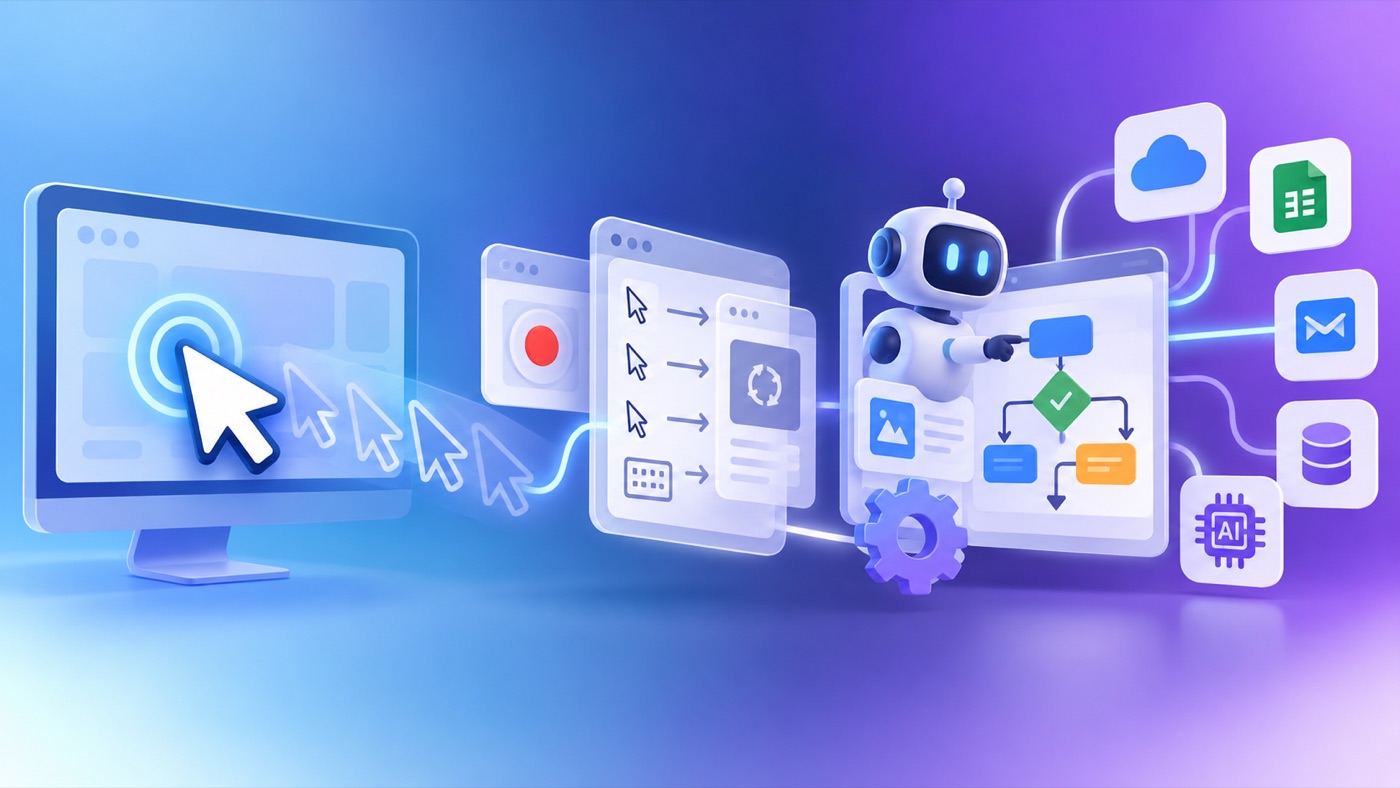
Strictly speaking, an auto clicker is already a type of automation tool. The real difference is in how much the tool can do beyond repetitive clicking. That is why choosing the right software depends less on which category sounds more powerful and more on what you actually need to automate.
In this guide, we'll look at the main types of automation tools, what each one is designed for, where they overlap, and which approach makes the most sense for different tasks.
Auto Clicker, Macro Recorder, and Desktop Automation
These three approaches are closely related. In fact, a single tool can cover more than one of them.
Auto Clicker
A basic auto clicker automates repetitive mouse clicks. You usually choose where to click, set the interval between clicks, and decide how many times the action should repeat.
For example:
That's a simple job, and a basic auto clicker can handle it perfectly well.
A well-known example is OP Auto Clicker, which supports fixed or current cursor locations, configurable intervals and repeat counts. Its current downloads include Windows and macOS.
Macro Recorder
A macro recorder automates a sequence rather than just one repeated click.
You perform the actions once, the software records them, and then the sequence can be played back automatically. For example, you might move the mouse, click one button, move somewhere else, click another button, and then replay the entire sequence.
TinyTask is a good example. Its main purpose is recording and repeating actions rather than building conditional workflows.
Desktop Automation
Desktop automation goes further when a task needs logic.
Instead of defining only:
you can build something closer to:
Depending on the tool, desktop automation can interact with applications, detect information on the screen, work with UI elements, use OCR, store values in variables, and follow different paths based on conditions.
The difference becomes easier to understand with a practical example. Imagine that an application has a button you need to press repeatedly. If the task is simply to click “Process” every five seconds, an auto clicker is enough.
But suppose the real task is:
The difficult part is no longer the click. The software needs to read what is happening, evaluate the result and decide what to do next.
A basic coordinate-based clicker usually can't do that. The same problem appears when an application takes longer than expected to load, a popup interrupts the process, or the expected state simply isn't there yet. A clicker that only follows coordinates and timers can continue executing its predefined actions even though the situation has changed.
This is where conditional desktop automation becomes useful: the workflow doesn't just repeat actions — it can use information from the screen to determine what should happen next.
One Tool Can Cover More Than One Category
ClickLore is a good example of that overlap because it can be used across all three of the categories above.
For a simple task, ClickLore can work as an auto clicker using a fixed Click Location or a Random Click Area. If you want to reproduce a sequence of mouse actions, you can record it and reuse the recording in a script.
But the same script can also include conditions. ClickLore can detect text, evaluate numbers found in a selected Recognition Area, use String Dependencies for more complex text conditions, and store and reuse values through variables.
It can also evaluate visual fields. For example, if a workflow depends on a visual rating, Field Detection can determine how many stars are filled and let the workflow react to the result.
So ClickLore isn't limited to one label: simple clicking, mouse recording and conditional visual desktop automation can all happen in the same app.
What About Broader Desktop Automation Tools?
ClickLore is focused on visual desktop automation, but there are much broader platforms that can also automate desktop tasks.
Microsoft Power Automate covers a much wider range of automation. Power Automate for desktop can interact with Windows applications through UI actions, mouse and keyboard input, recorded flows, image recognition and OCR. The wider platform can also connect services, data and business processes. In other words, desktop automation is only one part of what Power Automate is designed to handle. Power Automate for desktop itself runs on Windows.
That broader scope also means more concepts and capabilities to learn than in a tool focused specifically on visual desktop automation.
UiPath goes further into RPA and enterprise automation. Its Studio environment supports visual low-code workflows as well as coded automation and covers application integration, UI automation and larger business processes. Desktop automation is therefore only one part of the wider UiPath platform.
AutoHotkey takes a different approach. It is a Windows automation tool built around a scripting language rather than a visual workflow builder. This makes it highly flexible, but it also means that users define their automations through scripts.
Desktop Automation vs. Workflow Automation
Workflow automation usually operates at a different layer from desktop automation.
A desktop automation might look like:
A workflow automation might instead look like:
Zapier is a good example. Its workflows connect applications using triggers and actions: an event in one application starts actions in one or more other applications. These integrations work with the applications' data and APIs rather than reproducing what a person does on the screen.
n8n also connects applications and APIs through visual workflows, while allowing users to add code and self-host the platform when needed.
So desktop automation and workflow automation are related, but they solve different kinds of problems. Desktop automation interacts with applications through their interfaces or information visible on the screen. Workflow automation typically connects systems through integrations, APIs and data.
Some larger platforms combine both approaches. Power Automate, for example, includes desktop automation as well as cloud-based automation.
What About AI Agents?
AI agents add another approach because not every step has to be defined in advance.
In a traditional automation, you might explicitly build:
With an AI agent, you can instead provide a goal, instructions and a set of tools, and allow the agent to determine some of the steps required to complete the task.
These tools already exist. For example, ChatGPT Work can use a cloud browser to read web pages, click buttons, enter information into forms and carry out multi-step tasks on supported websites. UiPath Agents can use RPA workflows, API workflows, integrations and other tools to take actions, while n8n AI Agents can use connected models and tools to determine which actions to take while working toward a task.
That is fundamentally different from ClickLore. ClickLore doesn't decide what workflow to build for you: you define the actions, conditions and logic yourself. This makes the behavior predictable and repeatable rather than agent-driven.
Auto Clicker or Automation Tool: Which Do You Need?
By this point, the easiest way to choose is to match the tool to what you actually need to automate. The categories overlap, so the same product can appear more than once.
| What do you need to automate? | Best fit | Examples |
|---|---|---|
| Repeat simple mouse clicks | Auto clicker |
|
| Record and replay a sequence of mouse actions | Macro recorder |
|
| Combine clicks or recordings with screen text recognition, numeric conditions and variables | Visual desktop automation |
|
| Build desktop automation through scripts | Script-based automation |
|
| Automate larger business processes involving desktop software, data, integrations and other systems | RPA / business automation |
|
| Connect online apps and services through triggers, data and APIs | Workflow automation |
|
| Give the system a goal and let it determine some of the steps dynamically | AI agent |
|
FAQ
Is an auto clicker an automation tool?
Yes. An auto clicker is a type of automation tool focused primarily on automating mouse clicks. Other automation tools can add recorded sequences, conditions, screen recognition, integrations or other forms of logic.
Can an auto clicker react to what's happening on the screen?
A basic coordinate-based auto clicker normally follows predefined positions, intervals and repeat settings. Some products marketed as auto clickers include additional features such as image detection or macro recording, so the exact capabilities depend on the software.
If your task needs to read text or numbers from the screen and choose different actions based on the result, you are moving into conditional desktop automation.
Do I need coding skills for desktop automation?
Not necessarily. ClickLore is a no-code automation tool, so you can build workflows visually without writing code. Power Automate for desktop also uses a visual flow designer, while UiPath supports both visual low-code and coded automation. AutoHotkey takes a scripting-based approach.
Does ClickLore work on Mac and Windows?
Yes. ClickLore runs on both macOS and Windows. Looking for a TinyTask alternative on Mac? See our TinyTask Alternative for Mac guide.
Is it safe to use an auto clicker or macro in online games?
That depends on the game. Some games prohibit automation, macros or third-party tools in their terms or rules, and using them can lead to restrictions or account bans.
Always check the rules of the specific game before using an auto clicker, macro recorder or other automation software with it.